PAM-基于ssh登录错误次数锁定(防止暴力破解)
pam_tally2.so
`查看sshd访问是否启用了PAM认证`
[root@kvm02 ~]# grep -i pam /etc/ssh/sshd_config
# Set this to 'yes' to enable PAM authentication, account processing,
# and session processing. If this is enabled, PAM authentication will
# PasswordAuthentication. Depending on your PAM configuration,
# PAM authentication via ChallengeResponseAuthentication may bypass
# If you just want the PAM account and session checks to run without
# PAM authentication, then enable this but set PasswordAuthentication
# WARNING: 'UsePAM no' is not supported in Red Hat Enterprise Linux and may cause several
UsePAM yes
`修改pam的配置参数`
[root@kvm02 ~]# vim /etc/pam.d/sshd
#%PAM-1.0 #在这行下面新增下面一行(表示 root用户和普通用户登录输入密码错误三次就锁定该用户60秒)#防止暴力破解
auth required pam_tally2.so deny=3 even_deny_root root_unlock_time=60 unlock_time=60
#deny=3 连续错误登录最大次数,超过最大次数,将被锁定
#even_deny_root root用户也被要求锁定
#root_unlock_time root用户被锁定后等待的时间,单为秒
#unlock_time 普通用户被锁定后等待的时间,单为秒
`创建两个测试用户并设置密码为123456`
[root@kvm02 ~]# useradd test1
[root@kvm02 ~]# echo "test1:123456" | chpasswd
[root@kvm02 ~]# useradd test2
[root@kvm02 ~]# echo "test2:123456" | chpasswd
`ssh普通用户进行验证`
[root@kvm02 ~]# ssh test1@192.168.139.71
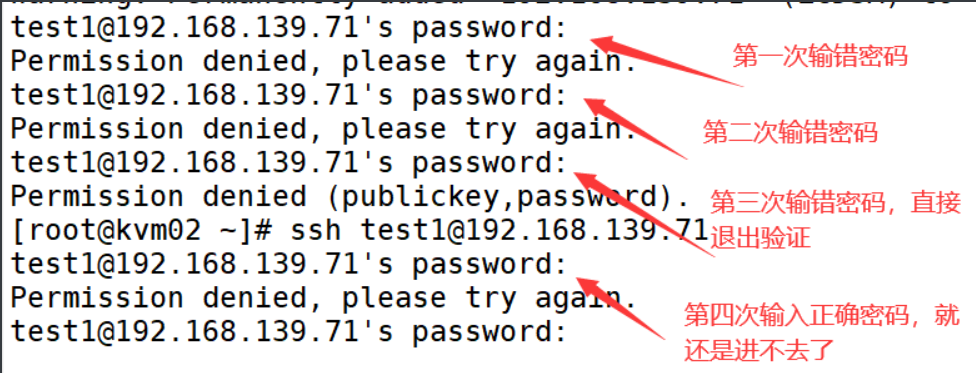
`查看用户输入密码错误次数`
[root@kvm02 ~]# pam_tally2 -u test1

`清理用户错误次次数`
[root@kvm02 ~]# pam_tally2 --reset -u test1


`重新用test1普通用户进行登录`
[root@kvm02 ~]# ssh test1@192.168.139.71
test1@192.168.139.71's password:
Last failed login: Wed Nov 29 10:58:21 CST 2023 from 192.168.139.71 on ssh:notty
There were 4 failed login attempts since the last successful login.
Last login: Wed Nov 29 10:48:53 2023
#成功

文章评论